Best Free Online Code Formatter & Beautifier Tools (2026)
A practical comparison of the best free online code formatter and beautifier tools in 2026 for HTML, CSS, JavaScript and JSON — features, common problems, and how to use them.
UniSoftware 8 min read
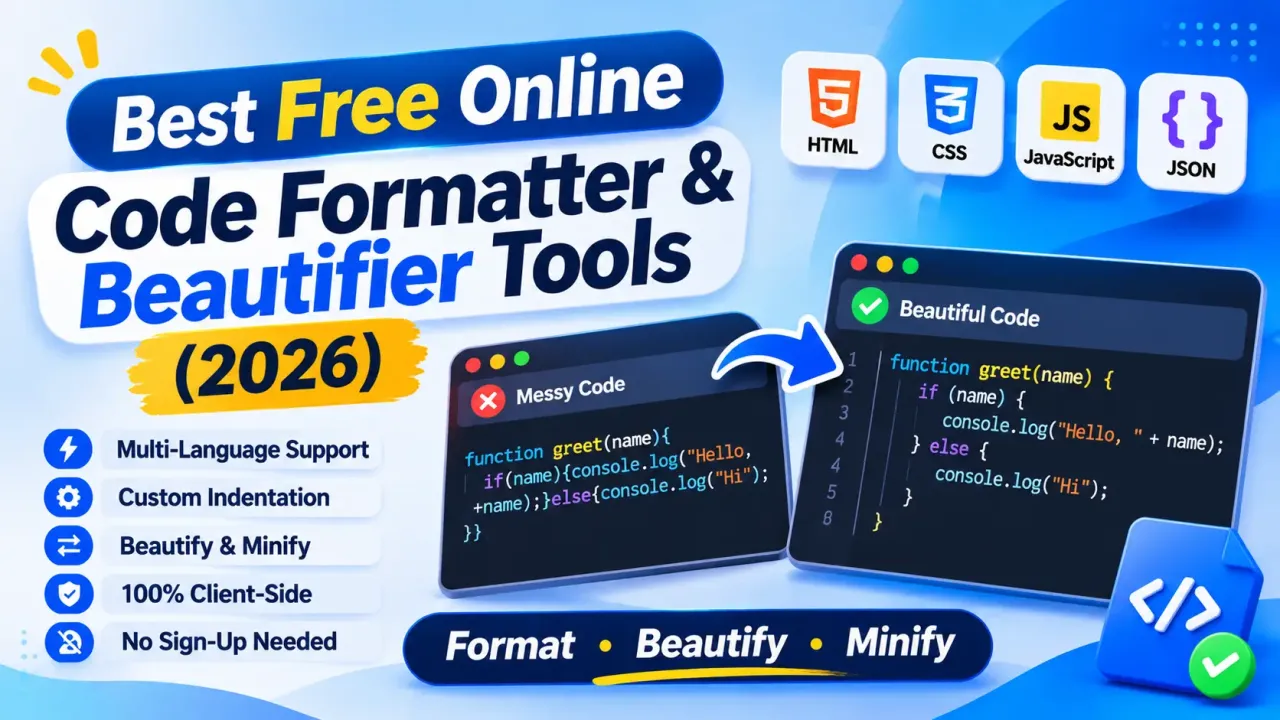
Messy, minified, or inconsistently indented code slows everyone down — reviewers skim past bugs, diffs turn into noise, and copy-pasted snippets from Slack or Stack Overflow rarely match your project's style. A good online code formatter and beautifier fixes this in seconds: paste raw HTML, CSS, JavaScript or JSON, and get back clean, consistently indented code with no install and no account. This guide compares the best free online code beautifier tools available in 2026, what actually matters when picking one, and how to use them well.
Why You Need an Online Code Formatter
Every codebase eventually collects inconsistent formatting — tabs mixed with spaces, inconsistent brace placement, lines that run 300 characters long after a quick production hotfix. A code formatter (also called a code beautifier) automatically rewrites that code with consistent indentation, spacing and line breaks, following the conventions of the language you're working in.
This matters for more than aesthetics. Consistent formatting makes diffs in pull requests meaningful — reviewers can see what actually changed instead of wading through whitespace noise. It also makes minified production code (JS and CSS served to the browser, often a single unreadable line) readable again when you need to debug it live in DevTools.
Online formatters are especially useful when you don't have your usual editor on hand: debugging a client's site from a shared machine, reviewing a code snippet pasted into a support ticket, or quickly cleaning up HTML copied from an email template. A browser tab with a formatter does the job without installing an extension or a full IDE.
What to Look for in a Code Beautifier Tool
- <strong>Multi-language support</strong> — the best free tools handle HTML, CSS, JavaScript/TypeScript, and JSON from one interface instead of forcing you to find a separate tool per language.
- <strong>Configurable indentation</strong> — 2 vs 4 spaces, tabs vs spaces, and brace style should be adjustable to match your project's style guide.
- <strong>Beautify and minify in one tool</strong> — the reverse operation (compressing formatted code for production) should be a one-click toggle, not a separate tool.
- <strong>Client-side processing</strong> — code that runs entirely in your browser, with nothing uploaded to a server, matters when you're pasting proprietary or client code.
- <strong>No sign-up, no file-size wall</strong> — the best free formatters let you paste large files without hitting a login prompt halfway through.
- <strong>Syntax highlighting and error tolerance</strong> — a good formatter should still produce a readable result from slightly malformed or partial code, not just reject it outright.
Best Free Online Code Formatter & Beautifier Tools Compared
Here's how the most widely used free code formatters compare on the features that matter most:
| Tool | Languages | Minify Toggle | Client-Side Only | Sign-up Required | Configurable Indentation |
|---|---|---|---|---|---|
| BestFormatter | CSS, HTML, JS, JSON | Yes | Yes | No | Limited |
| DevWorkBench Code Beautifier | JS, CSS, HTML | No | Yes | No | Yes |
| ToolBeans Code Formatter | JS, TS, HTML, CSS, JSON, XML | Yes | Yes | No | Yes |
| Tooloogle Formatters | HTML, CSS, JS (separate tools) | No | Yes | No | Yes |
| Utiliome Code Beautifier | JSON, HTML, CSS, JS | No | Yes | No | Limited |
| UniPreview Code Playground | HTML, CSS, JS, Vue, React, PHP | No | Yes | No | N/A (live preview focus) |
Dedicated beautifiers like ToolBeans or DevWorkBench are the fastest route when all you need is clean, re-indented code to paste back into your editor. If you also need to see the formatted code actually render — checking that your cleaned-up HTML/CSS/JS still behaves correctly — a live tool like UniPreview lets you format and preview in the same tab, which is closer to how most front-end debugging actually happens.
Who Actually Uses Code Formatters
Code formatting tools get used far beyond solo developers polishing their own style:
- <strong>Front-end developers</strong> cleaning up minified production CSS/JS pulled from a live site to understand how a feature was actually implemented.
- <strong>Code reviewers</strong> reformatting a pull request snippet before commenting, so the diff reflects logic changes instead of whitespace differences.
- <strong>Students and bootcamp learners</strong> pasting code from tutorials or Stack Overflow that arrives with inconsistent or broken indentation.
- <strong>Support and QA teams</strong> inspecting HTML/JS snippets reported by customers without opening a full IDE.
- <strong>Agencies and freelancers</strong> standardizing inherited codebases from previous developers before starting new work.
Because the use cases are this broad, the best formatters stay simple: paste, format, copy — no tutorial, no setup, no account wall.
How to Format Code Step by Step
- Copy the raw code — from a minified production file, a browser DevTools panel, or a pasted snippet.
- Paste it into the formatter and select the correct language (HTML, CSS, JavaScript, or JSON).
- Set your preferred indentation (2 or 4 spaces) if the tool allows it.
- Run the beautify action and review the output for obvious issues — badly broken input can sometimes produce odd results.
- If you need to ship the code to production, use the matching minify toggle to compress it back down.
- Copy the result back into your editor or codebase.
Common Formatting Problems and How to Fix Them
| Problem | Example | Fix |
|---|---|---|
| Mixed tabs and spaces | Inconsistent indentation within one file | Run the whole file through a formatter set to spaces-only |
| Minified production code pasted for debugging | Single unreadable line of JS/CSS | Beautify before editing, re-minify before shipping |
| Inconsistent brace style | Mixed "same-line" and "new-line" braces | Pick one style in the formatter's settings and apply to the whole file |
| Trailing whitespace and blank-line noise | Diffs full of whitespace-only changes | Use a formatter with a trim/clean option before committing |
| Broken HTML nesting | Unclosed tags after manual edits | Use an HTML beautifier with error tolerance, then fix flagged tags manually |
Code Formatter vs. Code Playground: When to Use Each
A dedicated formatter is the fastest option when all you need is clean, readable code to paste elsewhere. But if you're actually debugging how that code behaves — a layout break in CSS, a script error in JS — a free online code playground is the better tool, since you can format and immediately see the result render live. For multi-language snippets that mix markup, styles, and scripts, see our guide on why developers need one multi-language code preview tool, and for React-specific work see previewing React (JSX/TSX) code online without setup.
Pro tip
Performance and Privacy Considerations
Not every online formatter processes your code the same way. Server-side tools upload your pasted text to a remote endpoint to format it, which is fine for a public tutorial snippet but risky for proprietary client code, internal tooling, or anything containing API keys or credentials left in a comment. If that code is ever logged on the tool's end, you can't take it back.
Client-side (browser-only) formatters run entirely in JavaScript on your machine with nothing sent anywhere, which is the safer default for real work code. You can usually confirm this by disabling your network connection and checking whether the tool still works.
For very large files — a multi-thousand-line generated CSS bundle, for example — a desktop editor's built-in formatter (VS Code, for instance) will generally be faster and more stable than a browser tab, free or paid.
Browser Extension vs. Editor Plugin vs. Online Tool
There are three realistic ways to get formatted code, and each fits a different moment in your workflow. Editor plugins — Prettier in VS Code, for example — are the right long-term choice for your own projects: they run on save, enforce one style across a whole team via a shared config file, and integrate with pre-commit hooks so badly formatted code never reaches a pull request in the first place.
Browser extensions that auto-format JSON or pretty-print minified JS inside DevTools are useful for debugging live sites, since they kick in automatically whenever you open the network or sources panel, without any copy-pasting at all.
Online formatter websites fill the gap those two don't cover: a one-off snippet from someone else's codebase, a support ticket, a machine that isn't yours, or a quick check before you commit to installing anything. They trade long-term automation for zero setup, which is exactly the right trade-off for occasional, unpredictable formatting needs rather than daily development work.
Formatting Conventions by Language
Each language has its own common conventions, and a good formatter should default to something close to industry standard rather than an arbitrary style. For HTML, that typically means 2-space indentation, one attribute per line once a tag has more than two or three attributes, and self-closing void elements written consistently. For CSS, one property per line, a consistent brace style (opening brace on the same line as the selector is the dominant convention), and alphabetized or logically grouped properties make stylesheets far easier to scan during a review.
JavaScript and TypeScript formatting is largely standardized around Prettier-style output today: 2-space indentation, semicolons (or consistently none), and a fixed rule for where line breaks happen in long method chains or object literals. JSON has no stylistic debate since the spec is strict, but formatters still differ in how they handle key ordering and indentation width. Picking a formatter that lets you match whichever of these conventions your team already uses avoids introducing yet another style into an already-inconsistent codebase.
Frequently Asked Questions
Is an online code formatter the same as a linter?
Is it safe to paste proprietary code into an online formatter?
Can these tools format minified JavaScript back into something readable?
What is the difference between beautifying and minifying?
Does my code editor already do this, so do I need an online tool?
Conclusion
A reliable online code formatter and beautifier belongs in every developer's toolkit — it turns inconsistent, minified, or copy-pasted code into something clean and reviewable in seconds, with no install required. Pick a tool that supports your languages, processes code client-side for sensitive work, and pairs it with a live preview when you need to confirm the formatted code still behaves correctly.
Browse more free developer tools and comparisons on UniSoftware.app, including UniPreview for live multi-language code previews and formatting.
Related Tools & Guides
Try UniPreview
Best Free Online Regex Tester Tools (2026)
Best Free Online Image Compressor Tools (2026)