Best Free Online Diff Checker Tools to Compare Text, Code and JSON (2026)
A practical comparison of the best free online diff checker tools for comparing text, code, JSON and config files in 2026, plus when a browser-based tool like UniPreview beats a desktop app.
Content Author 8 min read
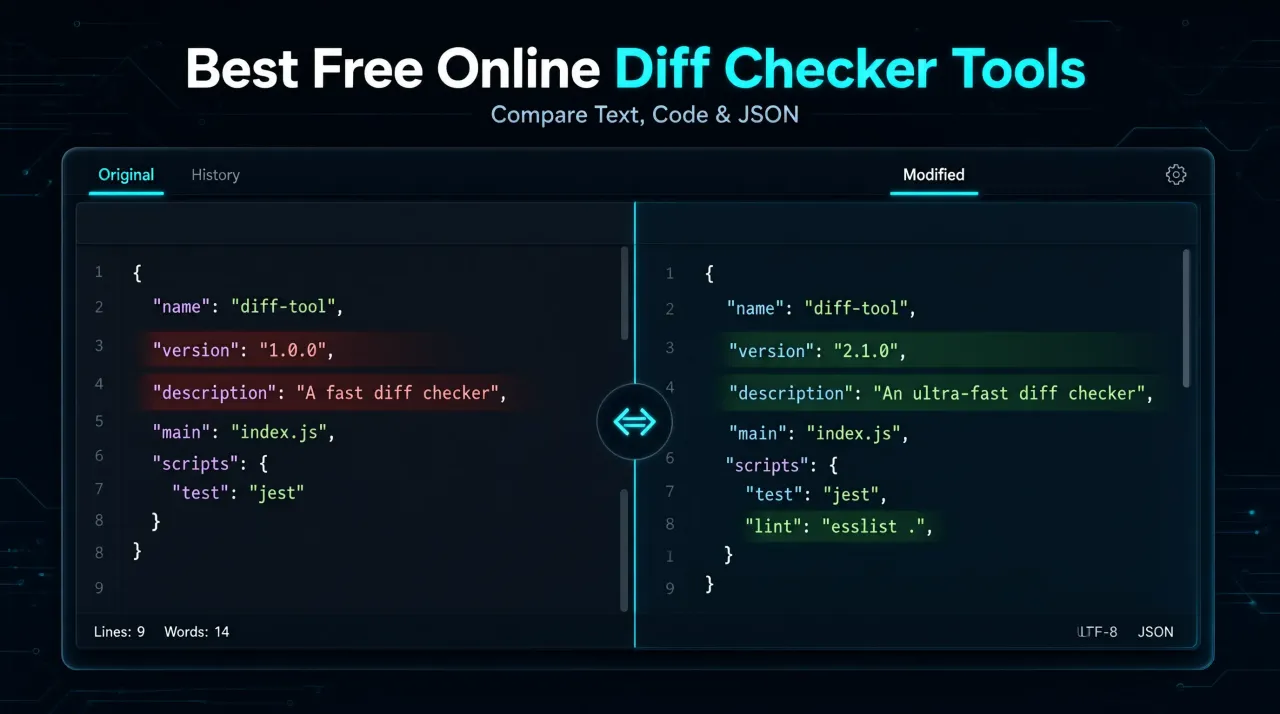
If you have ever pasted two versions of a config file, a pull request diff, or a JSON payload into a text editor and tried to spot what changed by eye, you already know why diff checkers exist. A good online diff checker highlights every addition, deletion and moved line in seconds, with no install and no signup. The hard part is picking one that is actually private, fast, and good at the specific format you work with (plain text, source code, JSON, or whole directories).
This guide compares the most-used free online diff checkers in 2026, explains how they actually process your data (some upload it, some run entirely in your browser), and shows where a dedicated tool wins over a generic "paste two boxes" comparator. We also cover when it is worth switching to a desktop or browser-native workflow instead of a web tool.
Why an online diff checker beats manual comparison
Manually scanning two blocks of text for differences does not scale past a few lines. A diff checker tokenizes both inputs (by character, word, or line) and runs a longest-common-subsequence style algorithm to show exactly what was added, removed, or unchanged. That turns a multi-minute visual search into a one-second highlighted result, which matters most in three everyday situations:
- Code review: confirming a pull request only touches the lines it claims to, without pulling the whole branch locally.
- Config and JSON audits: catching a single changed value, quote, or missing comma between two API responses or environment files.
- Content editing: comparing two drafts of an article, contract, or translation to see exactly what a collaborator changed.
What to check before you paste sensitive data into any diff tool
Not every "online diff checker" processes your text the same way. Some compare entirely inside your browser using JavaScript, so nothing leaves your device. Others upload both inputs to a server to run the comparison, then (usually) discard it. For source code, customer data, or unreleased config files, that distinction is not a technicality — it decides whether a tool is appropriate at all. Always check the tool's privacy notice before pasting anything you would not want logged, and prefer a client-side (in-browser) tool for anything sensitive.
Comparing the leading free online diff checkers
The table below summarizes how the most common free diff tools behave across the factors that matter most: where the comparison runs, what formats they understand, and what they are genuinely best at.
| Tool | Runs in browser? | Format awareness | Best for |
|---|---|---|---|
| Diffchecker | No (uploads to server, free tier) | Plain text, images, PDF (paid) | Quick one-off comparisons, familiar UI |
| WinMerge | Desktop app, not online | Files and folders | Full folder/directory diffs on Windows |
| Meld | Desktop app, not online | Files, folders, version control | Developers already in a Git/Linux workflow |
| Text Compare (generic web tools) | Varies by site | Plain text only | Simple side-by-side text comparisons |
| JSON-aware diff tools | Usually yes | Structural JSON/YAML diff | Catching key-order-independent JSON changes |
| UniPreview (code preview workflow) | Yes, fully client-side | HTML, Vue, PHP, JS/TS and more | Comparing rendered output while reviewing code snippets |
Plain text and line diffs
For comparing prose, documentation, or any unstructured text, a line-level or word-level diff is usually enough. Look for a tool that lets you switch between "line" and "word" diff modes — word-level highlighting is far more useful when only a sentence or two changed inside a long paragraph, while line-level is better for spotting whole paragraphs that moved.
Code and structural diffs
Source code needs a diff that understands whitespace and indentation rules, since a tool that flags every re-indented line as "changed" buries the real edits in noise. Many code-focused diff tools support ignoring whitespace-only changes, which is the single most useful setting when reviewing a formatted pull request. If you are reviewing a snippet and also want to see it rendered (for example, checking how an edited HTML/Vue component actually looks), pairing a diff tool with a live code preview tool like UniPreview closes the loop: diff the markup, then preview the rendered result without leaving the browser or setting up a local project.
JSON and config diffs
Plain text diffing is the wrong tool for JSON because key order and formatting (spacing, trailing commas) can differ without the data actually changing. A structural JSON diff parses both inputs first, so it reports "field X changed from 1 to 2" instead of highlighting a reformatted file as one giant change. If your workflow already includes validating JSON payloads, it is worth reading our guide on free online JSON formatter and validator tools first — a clean, validated JSON file is much easier to diff accurately than a minified or malformed one.
Normalize before you diff
A practical workflow: diff, validate, then preview
In practice, comparing two versions of a web project rarely stops at "what lines changed." A typical review workflow looks like this:
- Diff the raw files to see which lines actually changed, ignoring whitespace-only edits.
- For JSON or config changes, re-run the diff on formatted/validated output so the comparison reflects real structural changes.
- If the change touches markup or a UI component, preview the rendered result to confirm it looks right, instead of trusting the diff alone.
- If the change touches a regular expression used for validation, re-test it against sample input before merging — see our guide on <a href="/articles/best-free-online-regex-tester-tools-2026">free online regex tester tools</a> for how to do that quickly.
This is also where a general-purpose documentation workflow helps: if the change is to written content rather than code, drafting and comparing it in a distraction-free editor first — see our roundup of free online Markdown editors — makes the eventual diff much cleaner, since Markdown tends to normalize formatting before you ever compare two versions.
Choosing the right diff checker for your use case
| Use case | Recommended approach |
|---|---|
| Quick one-off text comparison | Any browser-based plain-text diff tool, word-level mode |
| Code review without cloning the branch | A code-aware diff tool with whitespace-ignore, paired with a live preview for markup changes |
| JSON/API response comparison | Format and validate both payloads first, then run a structural JSON diff |
| Whole folder or repository comparison | A desktop tool (WinMerge, Meld) rather than a web tool, since browsers are not built for large file trees |
| Sensitive or proprietary code | A fully client-side tool only — confirm nothing is uploaded before pasting |
Frequently asked questions
Is it safe to paste source code into an online diff checker?
What is the difference between a line diff and a word diff?
Why does my JSON diff show everything as changed when I only edited one field?
Can I diff entire folders online for free?
Do I need a paid diff tool for everyday use?
Common mistakes that make a diff harder to read
Even with a good tool, a few habits reliably make diffs harder to trust. The first is comparing unformatted and formatted versions of the same file side by side — if one copy was auto-formatted by an editor and the other was not, the diff will show hundreds of whitespace changes that hide the one real edit. Always run both sides through the same formatter before diffing.
The second is ignoring character encoding. A file saved with different line endings (CRLF vs LF) or a different encoding can appear completely different to a line-based diff even when the visible content is identical. Most modern online diff tools normalize line endings automatically, but it is worth checking the tool's settings if a diff looks suspiciously noisy.
The third is relying on a single diff view for a decision that matters. A visual diff is good at showing you what changed, but it will not tell you whether the change is correct. Pair the diff with a quick functional check — running the code, re-validating the JSON, or previewing the rendered markup — before treating "no unexpected lines changed" as "safe to ship."
Browser-based tools vs. desktop diff software
Online diff checkers win on convenience: no install, works on any device, and good enough for single files or pasted snippets. Desktop tools like WinMerge and Meld win once you need to compare entire directory trees, integrate with version control, or handle very large files that would be slow to paste into a browser tab. A reasonable rule of thumb: use a web-based diff checker for anything you can comfortably copy-paste, and reach for a desktop tool the moment you are comparing more than a handful of files at once, or when the files are large enough that copy-pasting becomes painful.
There is a middle ground worth mentioning too: some teams keep a lightweight local script (a one-line `diff` command, or a small Node/PHP utility) for repeatable comparisons in CI, and reserve the online tools for ad-hoc, one-off checks during review. If you find yourself running the same comparison more than a few times a week, that is usually a sign it is worth scripting rather than repeating manually in a browser.
Conclusion
The right diff checker depends on what you are comparing, not just which tool ranks highest. For quick plain-text edits, any browser-based word-diff tool is enough. For code review, prioritize whitespace-ignore and privacy (client-side processing). For JSON and config files, normalize first so the diff reflects real structural changes instead of formatting noise. And for whole repositories, a desktop tool will always handle large file trees better than a browser tab.
If your review workflow also involves validating JSON, testing a regex, drafting documentation, or previewing a markup/code change before merging it, explore our related developer tool guides linked throughout this article — or try UniPreview directly to preview HTML, Vue and PHP code changes in your browser with no project setup. Start with the comparison that matters most for your current task, and bookmark this guide for the next time you need to pick a diff tool fast.
Related Tools & Guides
Try UniPreview
Best Free Online Markdown Editors Compared (2026)
Best Free Online Base64 Encoder & Decoder Tools (2026)