Best Free Online Markdown Editors Compared (2026)
A 2026 comparison of the best free online Markdown editors - Dillinger, StackEdit, HackMD, Markdown Live Preview and UniPreview - with a feature table and guidance on picking the right one.
UniSoftware 8 min read

Introduction
Markdown is the default format for READMEs, documentation, blog drafts, release notes and note-taking apps, but writing it blind in a plain text box is painful - you cannot see whether a list nested correctly, a table lined up, or a code fence actually rendered until you push it somewhere else. An online markdown editor solves that by rendering a live preview next to the raw text, right in the browser, with nothing to install and nothing to configure. This guide compares the best free online markdown editor options in 2026, explains what actually matters when choosing one, and shows where a general-purpose code preview tool like UniPreview fits alongside dedicated markdown apps.
What to Look For in an Online Markdown Editor
- Live, side-by-side preview - you should see rendered output update as you type, not after a manual "render" click.
- GitHub Flavored Markdown (GFM) support - tables, task lists, strikethrough and fenced code blocks with syntax highlighting.
- No forced account or upload - for quick drafts and anything containing sensitive text, a tool that works entirely client-side is safer.
- Export options - at minimum HTML and a raw .md download; PDF and Word export save a conversion step later.
- Cloud sync (optional) - useful for longer documents you return to, but not required for a one-off README check.
- Speed - a markdown editor that lags on a 2,000-word document defeats the point of a live preview.
Top Free Online Markdown Editors Compared
The table below compares the tools that consistently show up in 2026 roundups for free, no-signup markdown editing.
| Tool | Live Preview | GFM Tables | Cloud Sync | Export Formats | Account Required |
|---|---|---|---|---|---|
| Dillinger | Yes (split pane) | Yes | GitHub, Dropbox, Drive, OneDrive | HTML, PDF, styled MD | No |
| StackEdit | Yes (split pane) | Yes | GitHub, Dropbox, Google Drive | HTML, PDF, Markdown | No (sync needs login) |
| HackMD | Yes (real-time) | Yes | GitHub, GitLab | HTML, PDF, slides | No for solo use |
| Markdown Live Preview | Yes (minimal) | Partial | None | HTML | No |
| UniPreview | Yes (multi-language, incl. Markdown) | Yes | None (session-based) | HTML | No |
Dillinger: Best Free Editor With Cloud Sync
Dillinger runs the same Monaco editor that powers VS Code, renders a live split-pane preview, and connects directly to GitHub, Dropbox, Google Drive, OneDrive and Bitbucket. It exports to PDF, HTML and styled Markdown, and supports Vim/Emacs keybindings for anyone who wants editor parity with their IDE. There is no account requirement unless you want cloud sync, which makes it a reasonable default choice for documentation work.
StackEdit: The Long-Standing Favorite
StackEdit has been a go-to "online markdown editor" answer for over a decade and is still actively maintained. It supports GitHub, Dropbox and Google Drive sync, plus extras like Mermaid diagrams and KaTeX math rendering that most lightweight editors skip. The trade-off is a slightly heavier interface than a single-purpose scratchpad tool.
HackMD: Best for Real-Time Team Collaboration
HackMD is built around multiplayer editing - several people can type into the same document and see each other's cursors live, which StackEdit and Dillinger do not offer. The free tier covers individual and small-team use; paid plans add private teams and custom domains. If the task is "draft this spec with two other engineers right now," HackMD is the practical pick.
Markdown Live Preview: Fastest for a One-Off Check
Sometimes the only thing you need is to paste a README someone sent you and see what it actually renders to. Markdown Live Preview and similar minimal tools skip accounts, sync and extras entirely - paste in, read the rendered HTML, close the tab. It is not a writing environment, just a renderer.
UniPreview: One Tab for Markdown and Everything Else
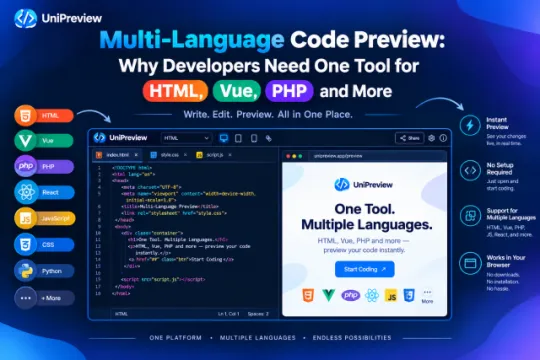
Most developers do not spend a whole day only in Markdown - the same session usually touches HTML, a Vue component, a YAML config or a PHP snippet too. UniPreview renders Markdown alongside those other languages in one multi-language preview tab, so switching from checking a README to previewing an HTML fragment does not mean switching tools. It will not replace a dedicated writing app like StackEdit for a 5,000-word document with cloud sync, but for quick Markdown checks mixed into a multi-language workflow it removes the need for a separate bookmark.
Picking between them
How to Choose the Right One for Your Workflow
- Writing a README or doc you will revisit over weeks? Pick Dillinger or StackEdit for cloud sync.
- Co-writing with teammates in real time? Pick HackMD.
- Just need to see how one file renders, once? Pick a minimal renderer like Markdown Live Preview.
- Switching between Markdown and other languages (HTML, Vue, PHP, YAML) in the same session? Pick a multi-language tool like UniPreview.
Markdown Syntax Quick Reference
If you are new to Markdown, the appeal of a live-preview editor is that you learn the syntax by watching it render instead of memorizing a cheat sheet. The core syntax that every tool in this comparison supports is small: a single # makes an H1, ## an H2, and so on down to H6. Wrapping text in double asterisks makes it bold, single asterisks make it italic, and a line starting with - or * becomes a bullet item. Numbered lists use 1., 2., and so on, and Markdown is forgiving enough to auto-renumber if you leave every line as 1.. Links use [label](url) and images use the same pattern with a leading exclamation mark.
GitHub Flavored Markdown extends that base syntax with a few additions that matter for technical writing: fenced code blocks (three backticks, optionally followed by a language name for syntax highlighting), pipe-delimited tables with a header separator row of dashes, and task lists written as - [ ] for an open item or - [x] for a completed one. Every tool compared above renders fenced code blocks correctly; table and task-list support is where the gap between a full editor and a minimal scratchpad tool usually shows up, which is why it is worth testing with your actual content before committing to one.
Common Mistakes When Writing Markdown
- Forgetting the blank line before and after a list or code block - most renderers need that spacing to tell a list apart from a regular paragraph.
- Mixing tab and space indentation inside nested lists, which renders fine in one tool and breaks in another because indentation handling is not fully standardized across Markdown flavors.
- Leaving a table header row without the dash separator line, which causes some renderers to show the table as plain text instead of a grid.
- Using raw HTML inside Markdown and assuming every renderer will pass it through - some tools sanitize or strip HTML by default for security reasons.
- Not checking the live preview before publishing - the entire point of these tools is to catch formatting issues before they reach a README, a CMS, or a pull request description.
Security and Privacy Considerations
Not every online markdown editor handles your text the same way behind the scenes. Tools that render purely client-side - meaning the Markdown-to-HTML conversion happens entirely in your browser's JavaScript engine, with nothing sent to a server - are the safer default for anything you would not want logged or stored elsewhere. Tools that offer cloud sync, by contrast, necessarily do send content to a server at some point, even if only when you explicitly connect a GitHub or Google Drive account. Neither approach is wrong, but it is worth matching the tool to the content: public documentation and open-source READMEs are low-risk either way, while draft contracts, internal specs, or anything containing credentials are better handled in a client-side-only tool or a local editor entirely.
Related Reading
Best Free Online Code Playgrounds in 2026 (and How UniPreview Compares)
Multi-Language Code Preview: Why Developers Need One Tool for HTML, Vue, PHP and More
Best Free Online JSON Formatter and Validator Tools (2026)

UniPreview
UNIZUNE
UniPreview is a free browser-based tool that lets developers instantly preview code in 23 languages and formats - from HTML, CSS and React to PHP, Python, Vue, Svelte and Markdown. Paste code, pick a language, and see the result immediately. No setup, no login, no cost.
Frequently Asked Questions
Is there a truly free online markdown editor with no account required?
Do online markdown editors support GitHub Flavored Markdown (tables, task lists)?
Can I export my Markdown to PDF or Word from these tools?
Is it safe to paste sensitive text into an online markdown editor?
What is the difference between a markdown editor and a markdown viewer?
Conclusion
There is no single best online markdown editor for every situation - the right pick depends on whether you need cloud sync, real-time collaboration, or just a fast way to check how a file renders. Dillinger and StackEdit cover serious documentation work, HackMD covers live collaboration, and lightweight multi-language tools like UniPreview cover the common case of Markdown being just one of several formats in the same browsing session.