Free WiFi QR Code Generator: Share Your Password Without Typing It
Turn your WiFi name and password into a scannable code with UNI-QR, so guests join in one tap instead of typing a password - free, no login.
UniSoftware 5 min read
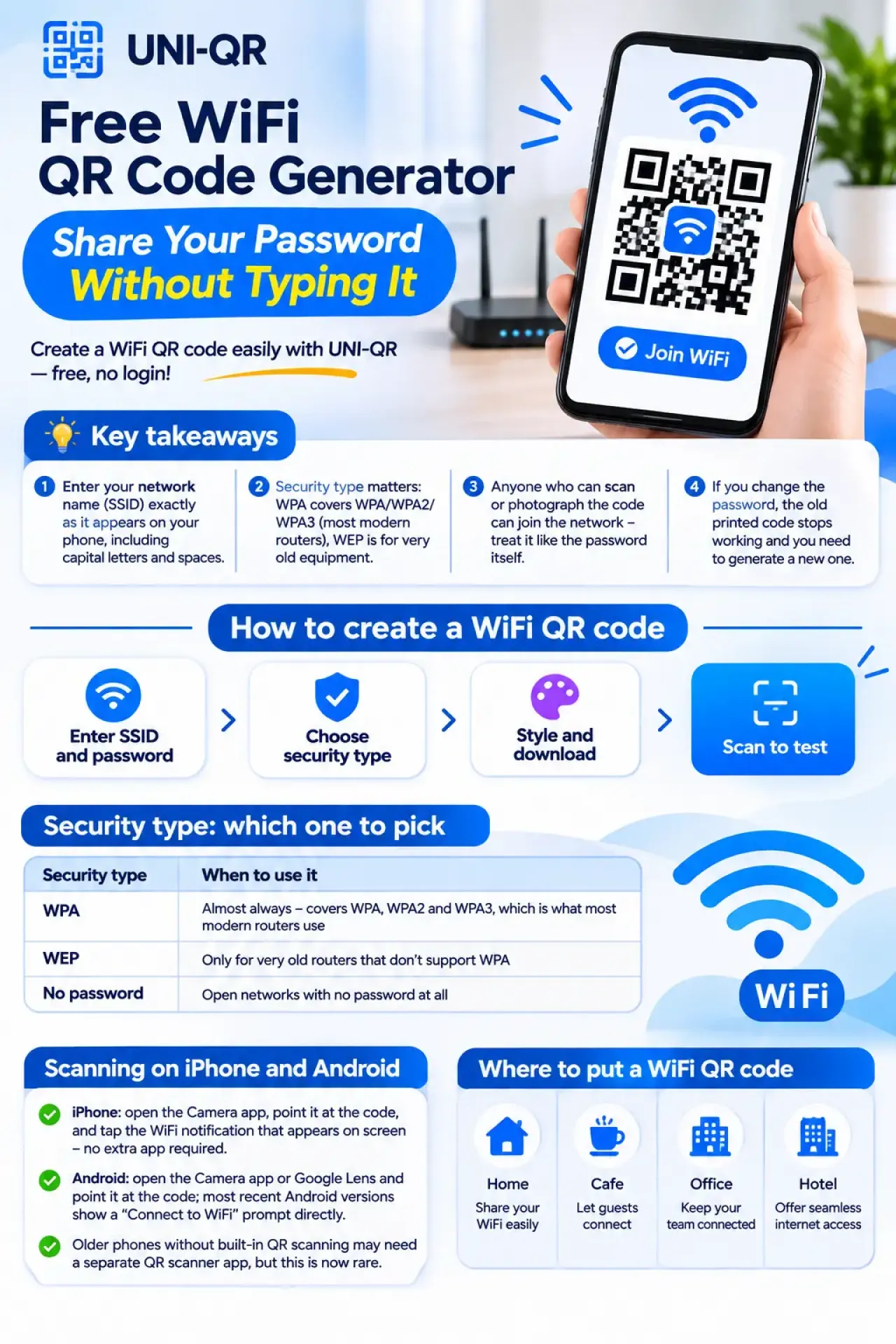
A WiFi QR code lets a phone join your network by scanning instead of typing a password. UNI-QR's free WiFi QR code generator builds one from your network name and password in seconds, styled to match your space, with no account needed.
Key takeaways
- Enter your network name (SSID) exactly as it appears on your phone, including capital letters and spaces.
- Security type matters: WPA covers WPA/WPA2/WPA3 (most modern routers), WEP is for very old equipment, and "No password" is for open networks.
- Anyone who can scan or photograph the code can join the network - treat it like the password itself.
- If you change the password, the old printed code stops working and you need to generate a new one.
How to create a WiFi QR code
Open the WiFi type in UNI-QR, type your network name and password exactly as they appear on your router, pick the matching security type, and tick "Hidden network" only if your router does not broadcast its name. The code builds in the standard WIFI: format that phone cameras already understand, so no app is needed to scan it.
Security type: which one to pick
| Security type | When to use it |
|---|---|
| WPA | Almost always - covers WPA, WPA2 and WPA3, which is what most modern routers use |
| WEP | Only for very old routers that don't support WPA |
| No password | Open networks with no password at all |
Scanning on iPhone and Android
- iPhone: open the Camera app, point it at the code, and tap the WiFi notification that appears on screen - no extra app required.
- Android: open the Camera app or Google Lens and point it at the code; most recent Android versions show a "Connect to WiFi" prompt directly.
- Older phones without built-in QR scanning in the camera app may need a separate QR scanner app, but this is now rare on phones from the last several years.
Where to put a WiFi QR code
A café can place the code on the counter or a small card on each table, so customers connect while they wait instead of asking staff to read out a long password. A hotel or holiday rental can put it in the welcome folder, on the back of the room door, or in a small frame by the TV - exactly where a guest looks first when they want to get online. An office can put one in each meeting room so visitors join the guest network without pulling a staff member away from what they're doing. A co-working space or shared studio can laminate a card at the reception desk so new members connect themselves on day one.
Guests scan up close, so print size matters less here than for a poster meant to be read from across a room - keep it at least about 3cm square with a clear white margin, and download the PDF or SVG for crisp printing rather than a small fixed-pixel PNG that might blur when enlarged.
Troubleshooting a code that won't connect
Most WiFi QR code failures trace back to one of a few causes. The network name or password was typed with the wrong capitalization or a missing space - routers are case-sensitive, so "CafeGuest" and "cafeguest" are different networks as far as the code is concerned. The wrong security type was selected - if the router uses WPA2 or WPA3 and "No password" or WEP was picked by mistake, the phone will reject the connection. The network is hidden but the "Hidden network" box was left unticked, so the phone never finds it to connect to. Or the password was changed on the router after the code was printed, so the old printed copies are now simply out of date. Re-checking the network name and password against the router itself resolves most of these in under a minute.
Security and password changes
Anyone who can photograph the code can join the network, so treat it like the password itself. For guests, it is worth creating a separate guest network on your router and sharing that code instead of your main network's. If you ever need to cut off access, change the guest password on your router and generate a fresh code - the old printed copies stop working immediately. Run UNI-QR's built-in scan test after you finish styling, then also test the printed card with a real phone before handing out copies - see Scan Reliability for why that second check matters.
Styling a WiFi code without hurting the scan
A WiFi code is read the same way as any other type in UNI-QR, so the same styling advice applies: dark dots on a light background scan most reliably, a logo in the center should be paired with a higher error-correction level, and a frame with text like "Scan for WiFi" or "Tap to connect" makes the purpose obvious to a guest glancing at it for the first time. Because a WiFi code is often printed small and viewed up close, it tolerates a slightly tighter quiet zone than a poster-sized code meant to be scanned from a distance - but it still needs a visible margin, so don't trim it away entirely to fit a very small card.
Does the WiFi QR code expire?
Is my WiFi password sent to a server?
Will this work with WPA3 routers?
Can I add my logo to a WiFi QR code?
Free QR code generator — complete guide, no login